> ## Documentation Index
> Fetch the complete documentation index at: https://docs.contexaai.com/llms.txt
> Use this file to discover all available pages before exploring further.
# Manage your Servers
> Once deployed, you can view and manage all your servers under the MCP servers tab
## Manage Your MCP Servers
Once you’ve deployed one or more MCP servers, the **MCP Servers** tab becomes your control center. From here, you can view all your active deployments, inspect details, configure settings, and make changes - all in one place.
### Where to find it
* Click on **“MCP Servers”** from the left sidebar.
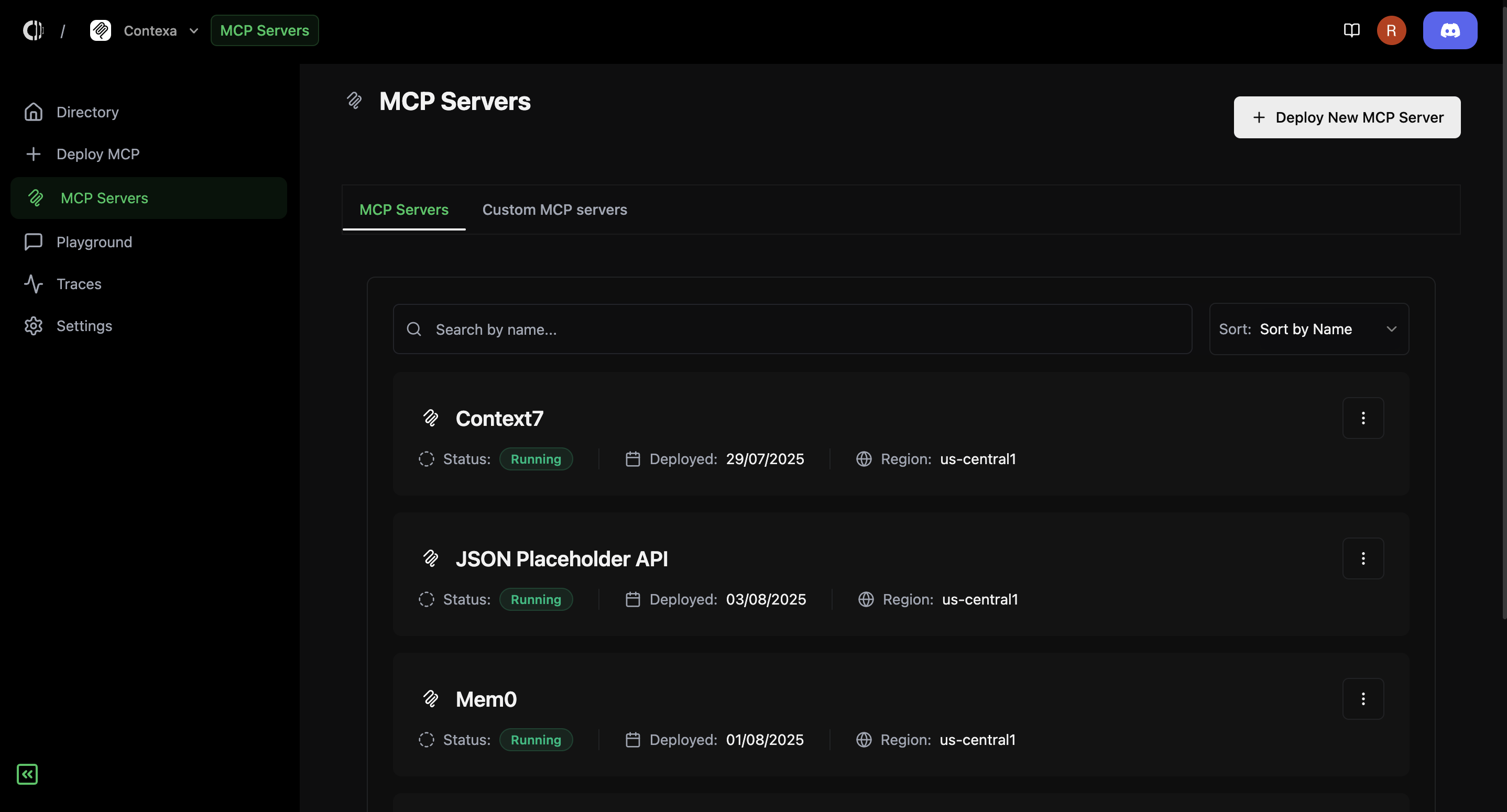
* You'll land on a dashboard that shows all your deployed servers, neatly separated into two tabs:
* **MCP Servers** – Regular servers (from OpenAPI specs or GitHub imports)
* **Custom MCP Servers** – Servers created by bundling tools from other deployed servers
 ### What you can do
1. **Search and Sort:**
* Use the search bar to find servers by name
* Sort servers by name or deployment date
2. **Server Overview:**
* Each server card shows its **name**, **status**, **deployment date**, and **region**
* Click on any card to open the **server management view**
### Inside the server management screen
Once you click on a server, you’ll see everything you need to manage it effectively:
#### **1. Quick Overview**
* **Server URL** – This is the MCP endpoint your agents will use
* **Status, Region, Deployment Date** – Key metadata at the top
* **Quick Actions:**
* Edit instance configuration
* Edit environment variables
* Delete server
### What you can do
1. **Search and Sort:**
* Use the search bar to find servers by name
* Sort servers by name or deployment date
2. **Server Overview:**
* Each server card shows its **name**, **status**, **deployment date**, and **region**
* Click on any card to open the **server management view**
### Inside the server management screen
Once you click on a server, you’ll see everything you need to manage it effectively:
#### **1. Quick Overview**
* **Server URL** – This is the MCP endpoint your agents will use
* **Status, Region, Deployment Date** – Key metadata at the top
* **Quick Actions:**
* Edit instance configuration
* Edit environment variables
* Delete server
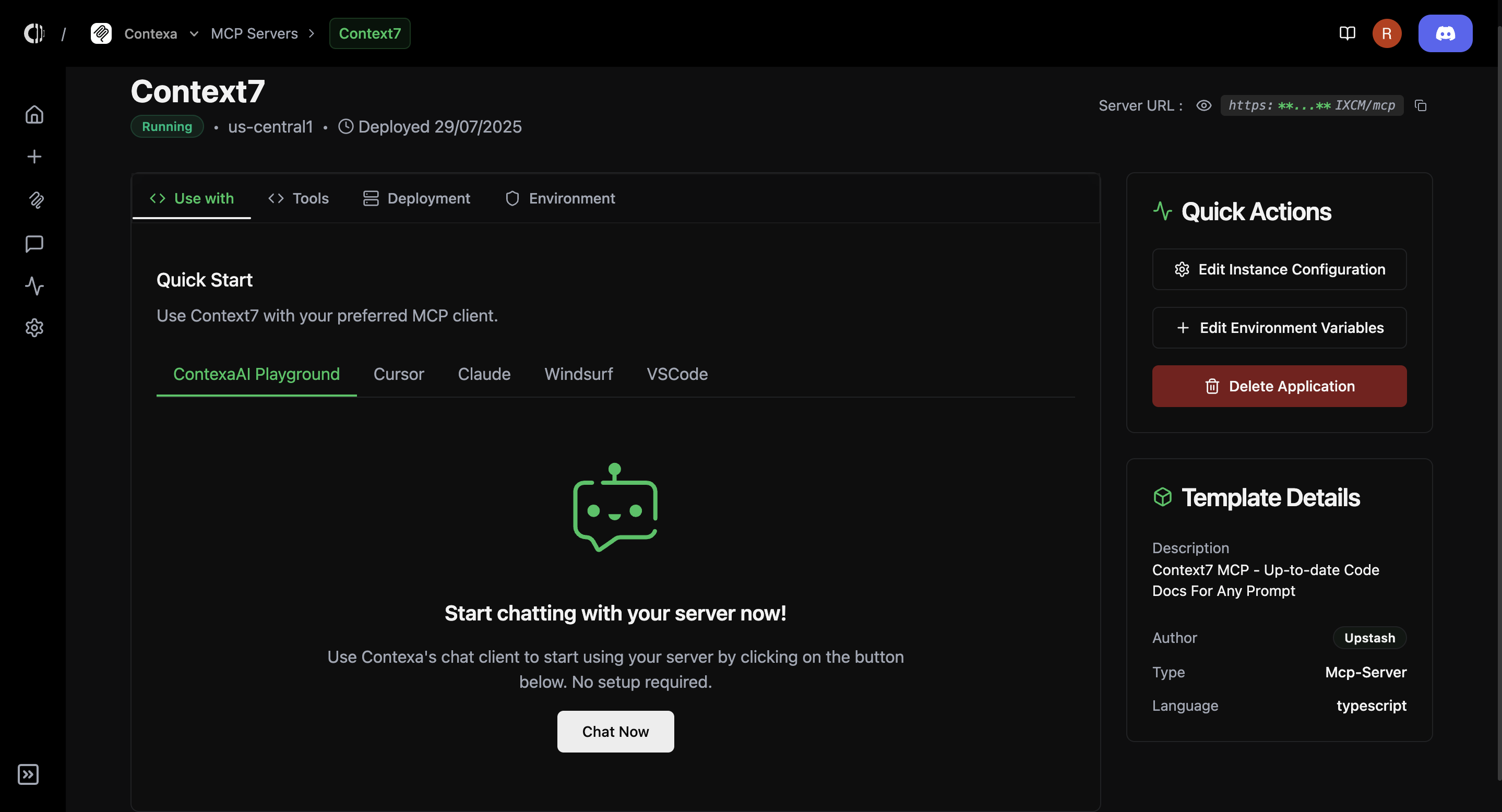 #### **2. Use With**
* View and connect your MCP server to supported AI clients like:
* **ContexaAI Playground**
* **Cursor**
* **Claude**
* **Windsurf**
* **VSCode**
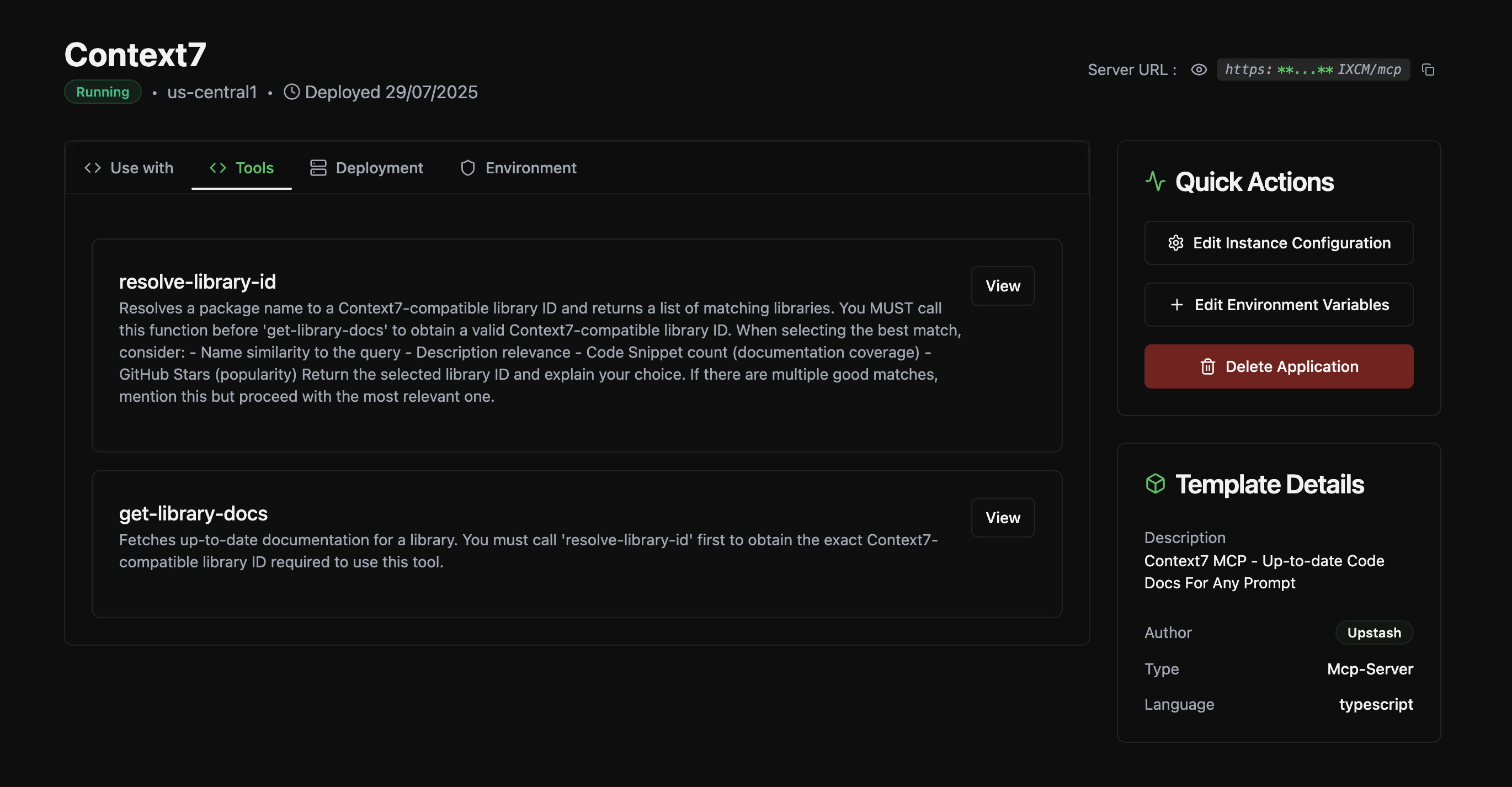
#### **3. Tools Tab**
* See all tools exposed by the server
* View full tool descriptions
* Each tool has a “View” button for quick inspection
#### **2. Use With**
* View and connect your MCP server to supported AI clients like:
* **ContexaAI Playground**
* **Cursor**
* **Claude**
* **Windsurf**
* **VSCode**
#### **3. Tools Tab**
* See all tools exposed by the server
* View full tool descriptions
* Each tool has a “View” button for quick inspection
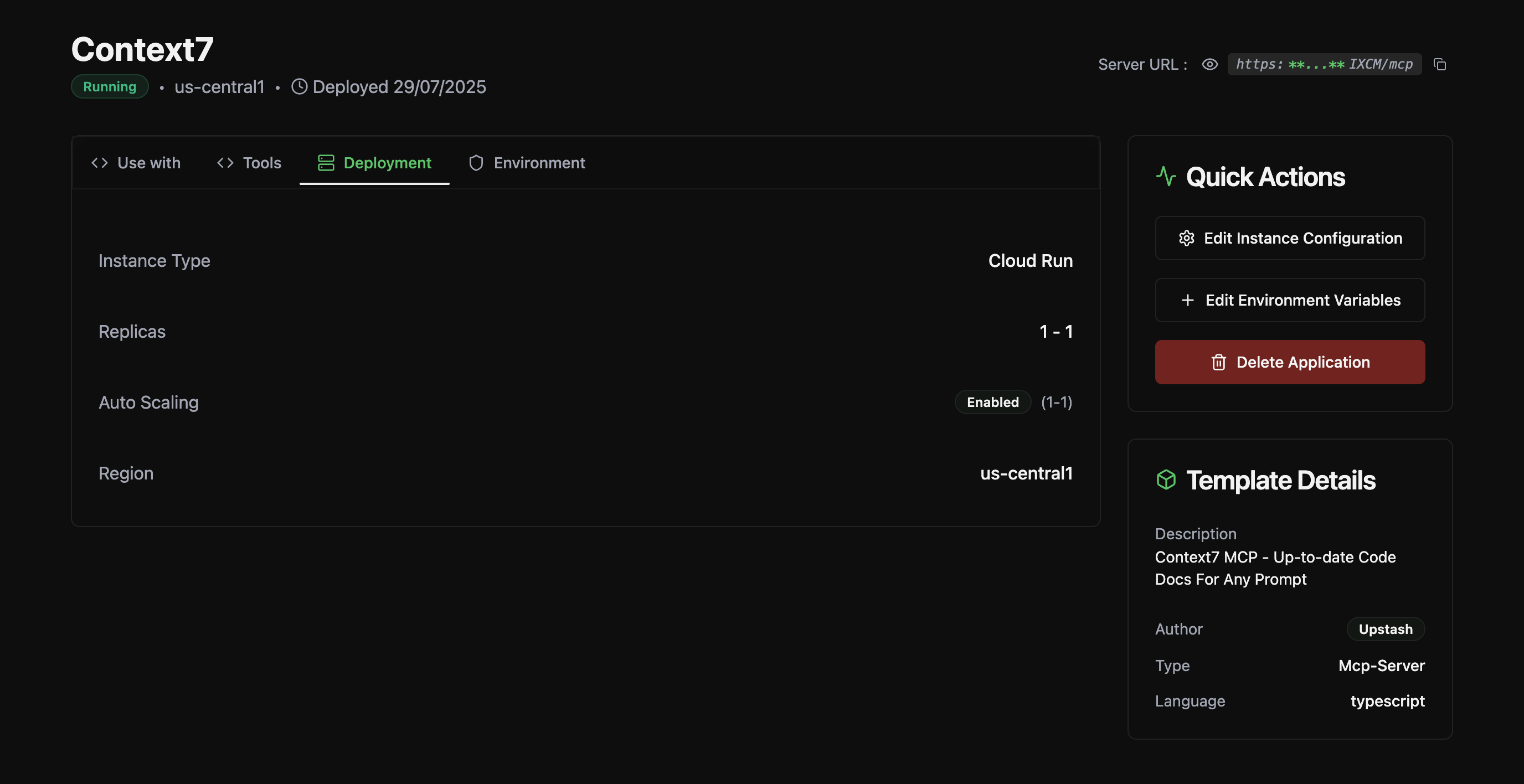
 #### **4. Deployment Tab**
* View infrastructure settings like:
* **Instance type**
* **Replicas**
* **Autoscaling status**
* **Region**
#### **4. Deployment Tab**
* View infrastructure settings like:
* **Instance type**
* **Replicas**
* **Autoscaling status**
* **Region**
 #### **5. Environment Tab**
* View and manage your server’s environment variables securely
* **Copy**, **Edit**, or add new variables as needed
#### **5. Environment Tab**
* View and manage your server’s environment variables securely
* **Copy**, **Edit**, or add new variables as needed
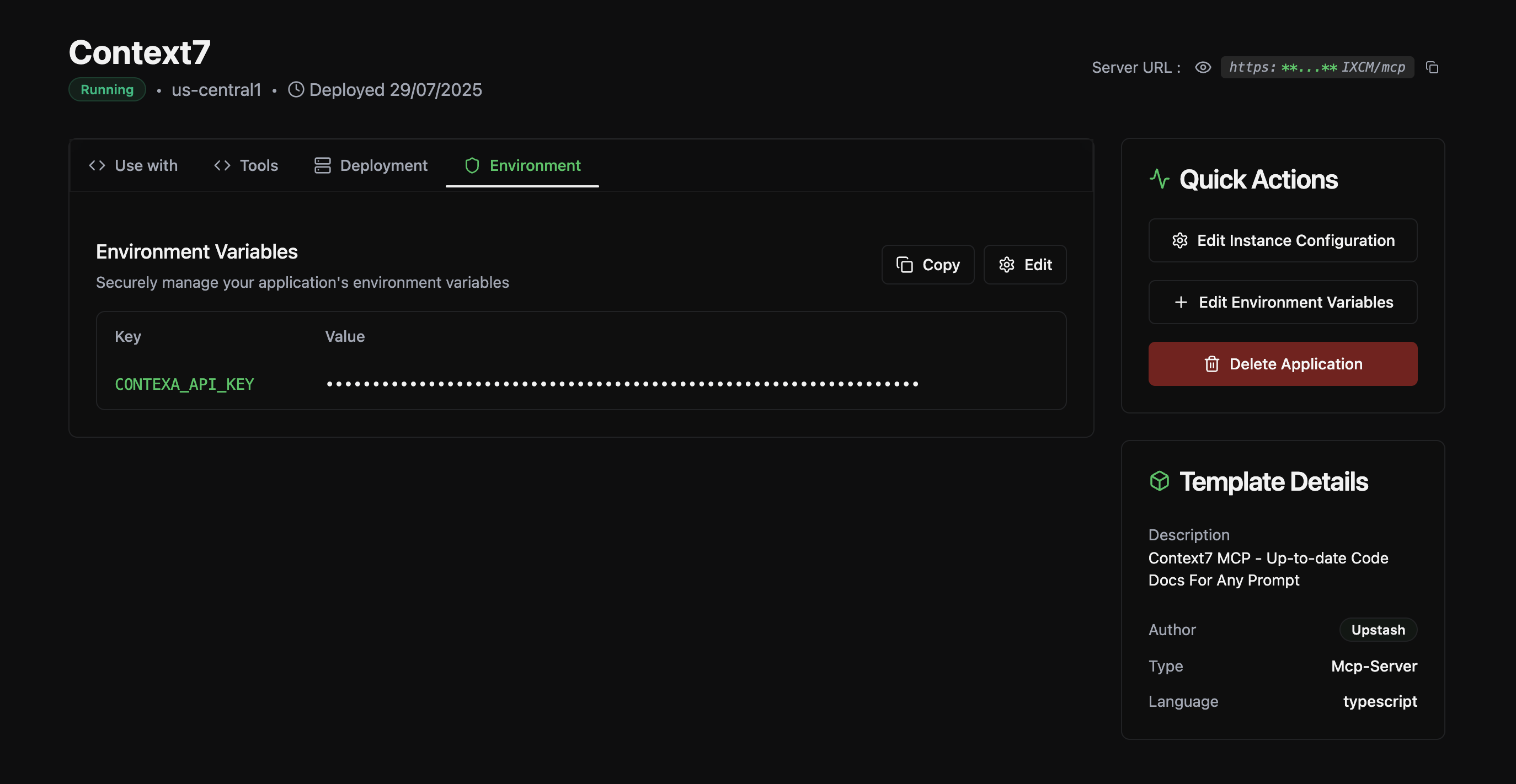 This section helps you stay on top of everything from monitoring to scaling to secure updates. Whether you’re tweaking a single tool description or rotating secrets across environments, the **Manage MCP Servers** screen gives you complete control.